Before you start
Make sure the device has no power. Logitech, Microsoft and Apple all say the same thing: unplug a wired keyboard or mouse, switch off a wireless one, and (Microsoft adds) take the batteries out.
Then check the manual or support page for the exact model you own. The steps below come from those three brands' published guides. They mostly agree, but they disagree on alcohol strength, so your own brand's guidance wins.
How to clean a keyboard in four steps
- Turn it over and tap. Hold the keyboard upside down and tap it gently so loose crumbs fall out (Microsoft).
- Blow between the keys. Use compressed air to clear dust from between the keys. Logitech says the cold setting of a hair dryer works if you have no compressed air.
- Wipe the keys and case. Lightly dampen a soft, lint-free cloth with tap water and wipe the keys (Logitech), or use a cloth or cotton swab with mild soap and water (Microsoft). Wring it out: no drops should run into the keyboard.
- Disinfect only if you need to. Use the alcohol strength from the table below, applied to the cloth, never sprayed on the keyboard.
Can I pull the keycaps off?
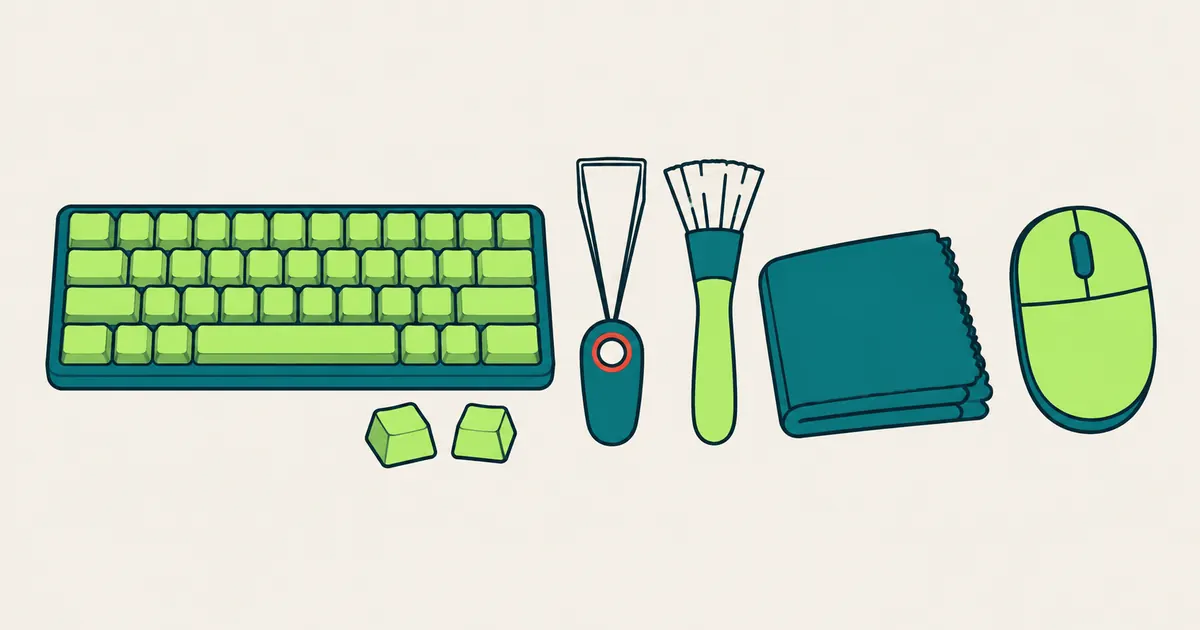
Only on keyboards designed for it. Logitech explains that some keyboards, including its mechanical ones, have removable keycaps for a deeper clean: a keycap puller makes it easiest, and when you put them back you line up the stems and press until you hear a click. Take a photo of the layout first. Laptop and low-profile keycaps are usually not meant to come off, so leave them alone unless the manual says otherwise.
How to clean a mouse
- Shell and wheel: wipe with a slightly damp, lint-free cloth. Microsoft's guide includes the wheel and the outside of the optical sensor.
- Button gaps and around the wheel: use compressed air or a soft brush. This is also Logitech's first step when a button double clicks or will not hold.
- Sensor: if tracking feels off, Apple suggests turning the mouse over, inspecting the sensor window under a bright light and clearing debris with compressed air.
- Feet: a dry cloth is enough to pick up hair and dust; no solvent needed.
Can I use alcohol? Check your brand
Yes, but the three brands list very different limits, so stick to your own brand's limit. Logitech also makes it clear that damage caused by bleach, acetone, strong solvents or abrasives isn't covered by the warranty. Here is what each brand says:
| Brand | Says you can use | Says to avoid |
|---|---|---|
| Logitech | Tap water, fragrance-free disinfecting wipes, makeup removing tissue, alcohol swabs under 25% | Bleach, acetone or nail polish remover, strong solvents, abrasives; pouring, spraying directly or submerging |
| Microsoft | Mild soap and water; isopropyl alcohol 70% or less applied to a cloth | Applying liquid directly to the mouse or keyboard |
| Apple | Water; on hard, nonporous surfaces, 70% isopropyl or 75% ethyl alcohol wipes and Clorox Disinfecting Wipes | Products with bleach or hydrogen peroxide, aerosol sprays, abrasives; moisture in openings, submerging |
For another brand with no guidance you can find, the cautious choice is a slightly damp cloth, and the lowest of these alcohol strengths when you really need to disinfect.
How often should you clean them?
Logitech and Microsoft give different answers here. Logitech recommends cleaning your keyboard every week so stains never get hard to remove. Microsoft says to clean its mice and keyboards monthly or as needed. Our suggestion: if you eat at your desk, share the computer, have sweaty hands or use a light colored keyboard, go weekly. If yours stays clean, once a month is enough. Clean the mouse at the same time.
Logitech also suggests skipping greasy or strongly colored snacks while you type, and keeping your hands off the keyboard right after you put on lotion. That keeps it clean longer between cleanings.
What not to do
- Do not pour or spray any cleaner or alcohol directly onto the keyboard or mouse. Put it on the cloth first.
- Do not submerge anything or let moisture into openings and ports.
- Do not use bleach, hydrogen peroxide, acetone, strong solvents, or abrasive pads and paper towels.
- Do not clean it while it is powered, and do not plug it back in until it is completely dry.
What if you spill a drink on it?
None of the official cleaning guides cited here covers spills, so this is our own summary built on their two basic rules, power off first and keep moisture out of openings: unplug or switch off right away and remove the batteries, turn the keyboard upside down so the liquid can drain, blot the surface dry, and only reconnect it once it is fully dry. Sugary drinks dry sticky, so pull the keycaps if your keyboard allows it. If it is still under warranty, ask the manufacturer before you open anything.
How to check every key still works afterwards
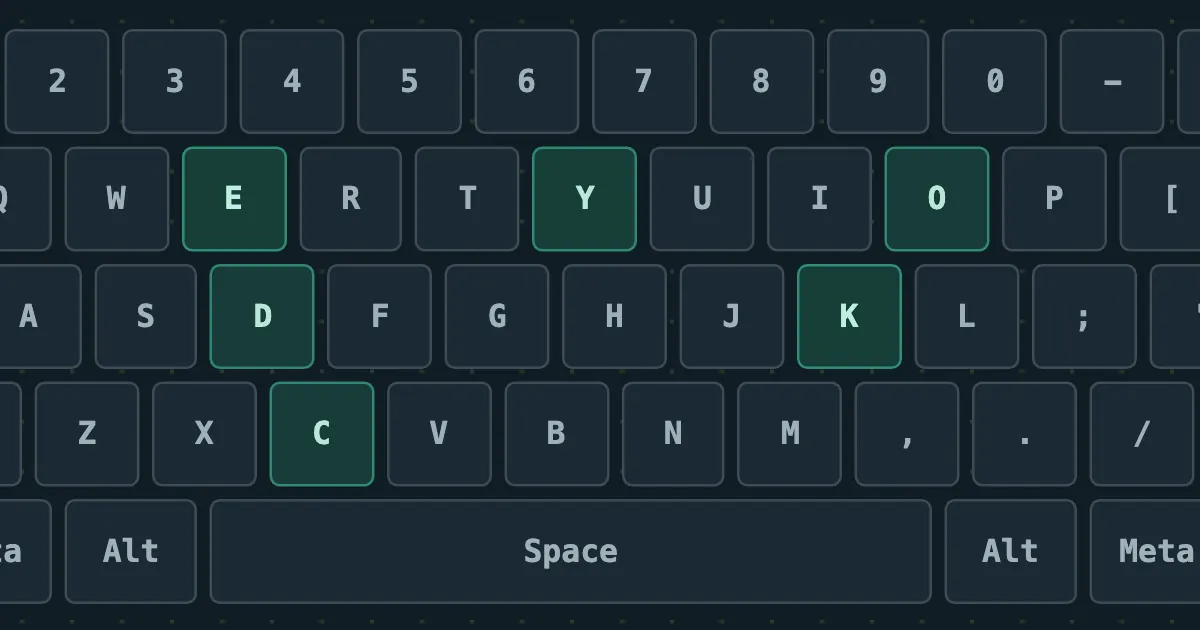
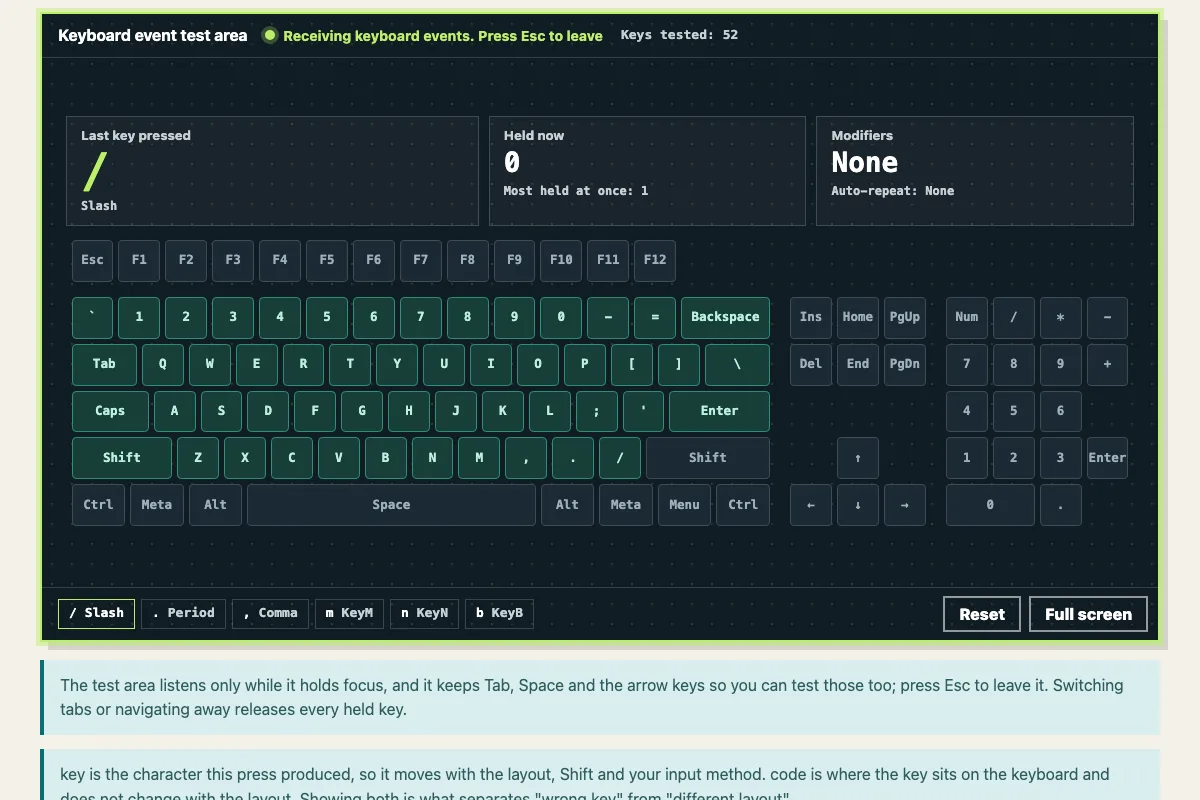
Open our keyboard tester, click the test area and press every key row by row from the top left. Each key you press gets an outline and the Keys tested count goes up, so anything you missed, or anything that stopped responding, stands out. Pay special attention to keys whose caps you pulled. If one does not respond, lift the keycap and press it back until it clicks, then try again.
For the mouse, press all five buttons in the Buttons mode of the mouse tester and roll a few notches each way in Wheel mode. To check for double clicking and dropped drags as well, follow How to Check a New or Used Mouse.