Why check it right away?
Because returns are easy only for a short time. Most stores give you a fixed return window, and once it closes a faulty mouse turns into a warranty claim that can take weeks. Look up the return policy of the store you bought from, and run the checks below before you throw away the box.
A used mouse from a private seller usually comes with no return window at all. If you meet the seller in person, check it before you pay: five minutes on your own laptop will tell you more than any listing photo.
Before you start
- Use a desktop or laptop. Taps on a phone or tablet do not count as mouse events. When buying used, bring your own laptop: the seller's computer may have its buttons remapped.
- Charge a wireless mouse or put in fresh batteries. A weak battery causes dropouts that look a lot like a failing button.
- Know your button settings. A left-handed setting in your operating system swaps the left and right buttons, and mouse software can reassign the side buttons. The browser sees the result of those settings, not the physical button.
Step 1: Do all five buttons work?
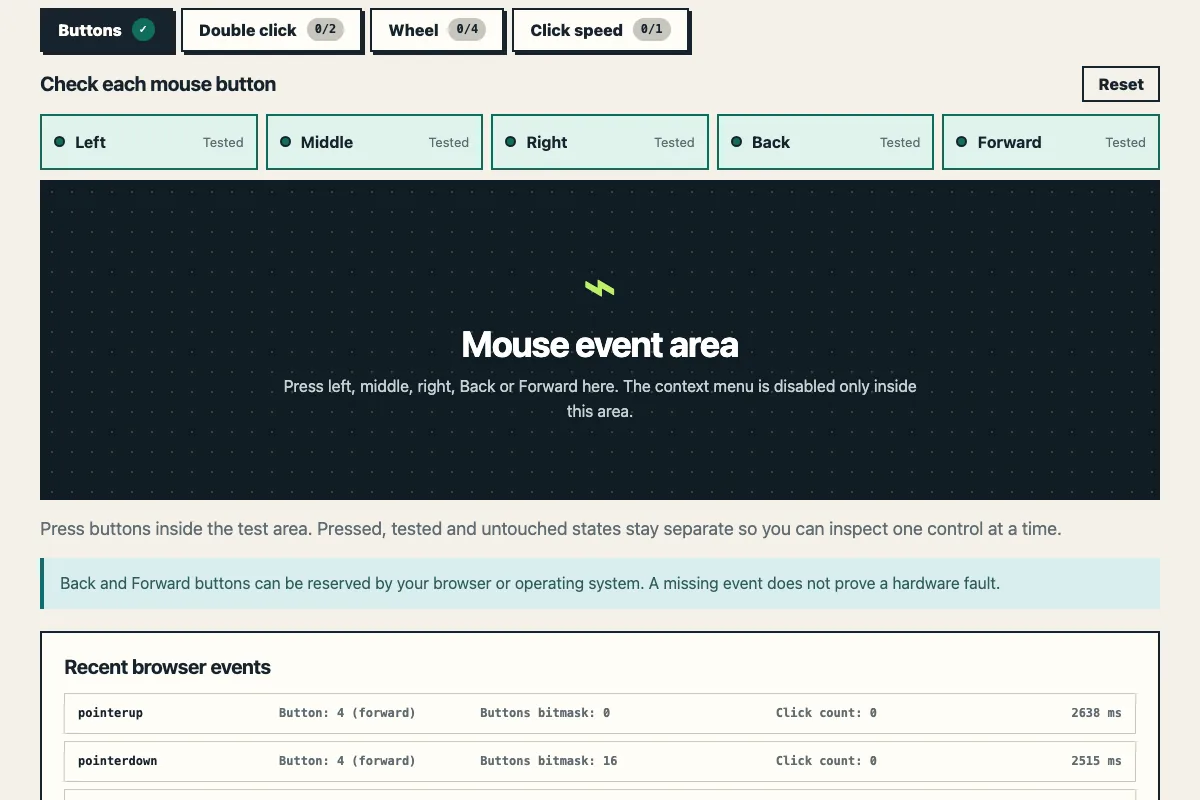
Open the Buttons mode of our mouse tester, move the pointer into the test area and press left, middle (the wheel click), right, then Back and Forward. Each lamp shows Pressed now while you hold the button and turns Tested when you let go.
- Down and up should both be instant. The lamp should leave Pressed now the moment your finger lifts. A button that stays down, or needs a second press to pop back up, has a return problem.
- Side buttons showing Not detected are not proof of a fault. Browsers and operating systems often keep Back and Forward for themselves. Try another browser or computer before you blame the mouse.
- Left and right swapped? That is almost always the left-handed setting in your operating system.
Step 2: Does one click ever count as two?
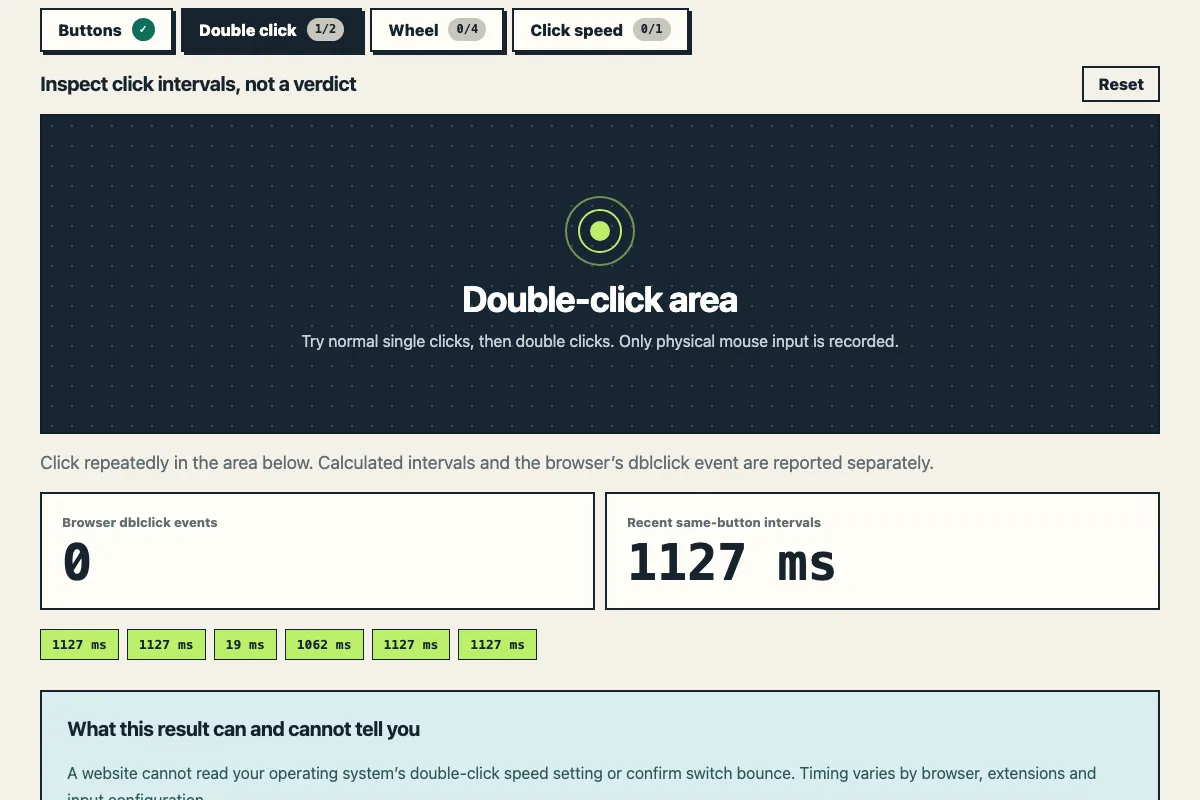
A mouse that double clicks on a single click is the fault most worth catching, because it comes and goes and a seller may not even know about it. Switch to Double click mode and click the left button slowly 20 times, about one second apart.
- Each chip under Recent same-button intervals is the time between two clicks of the same button. With slow clicks, every chip should read around one second.
- If you clicked once and a new chip shows only a few dozen milliseconds, that press reached the browser as two clicks.
- The Browser dblclick events counter only rises when the browser merges two clicks into a double click, so it should stay put while you click slowly.
Repeat with the right button. One stray chip is worth a few more rounds; if it keeps happening, follow Logitech's advice and try another USB port, fresh batteries and another computer, and check the double-click speed setting in your operating system. If it still happens on a different computer, the mouse itself is the likely cause. Our tool reports what the browser received; it does not judge the hardware.
Step 3: Does a held click stay held?
The other common failure is a click that lets go on its own halfway through a drag. Back in Buttons mode, hold the left button for about five seconds while moving slowly inside the test area. The lamp should read Pressed now the whole time, and the event list should show no release until you actually let go.
Step 4: Does every wheel notch register?
In Wheel mode, roll down ten notches one at a time, then up ten. The Direction should match every notch; a stray Up while you roll down means the browser received mixed directions, so roll a few more rounds to see if it repeats. If the wheel tilts, push it left and right too.
The delta numbers are values after the browser's own conversion. They change with browser and system settings, so do not compare them between computers or read them as hardware steps.
Step 5: Check the sensor and the hardware by eye
No web page can measure DPI, polling rate or latency, so the sensor check is visual:
- On the surface you normally use, draw slow horizontal and vertical lines and a few circles. The pointer should follow your hand without jumping, stalling or drifting while the mouse is still.
- If tracking is off, Apple suggests turning the mouse over, inspecting the sensor window under a bright light and clearing any debris with compressed air. Logitech recommends a smooth, matte surface.
- While it is upside down, look at the feet (worn flat or peeling?), the cable and connector, wheel wobble and the battery cover.
Buying used: a five-minute order
| Order | Where | What to look for |
|---|---|---|
| 1 | Hands and eyes | Feet, cable, connector, wheel wobble, battery cover |
| 2 | Buttons mode | All five lamps reach Tested and release instantly |
| 3 | Double click mode | 20 slow clicks per button with no stray short interval |
| 4 | Buttons mode | A five-second held click that never lets go |
| 5 | Wheel mode | Ten notches each way, no mixed directions |
| 6 | Your desktop | Lines and circles without jumps or drift |
Skip clicks per second and the raw wheel numbers: they reflect your hand speed and your browser settings, not the health of the mouse.
What if something fails?
Rule out the setup first: another USB port, fresh batteries, another browser, another computer. Only a fault that follows the mouse to a different computer is likely the mouse. For a new mouse, contact the store while the return window is open, or the manufacturer if you are past it and still under warranty. For a used one found faulty at the meetup, the easy answer is not to buy it.