ID copy watermark
Photograph or pick a copy of your document,
then stamp it "for this purpose only". Free, no sign-up. The photo is processed in your browser and never uploaded.
You can also drop a photo here
How it works
- Take or pick a photo
- Straighten the crop, cover what is not needed
- Add the watermark, download or share
What to write on a document copy
A note such as "For Riverside Bank account opening only" records who you handed the copy to and what it was for. If the copy turns up somewhere else, the mismatch is easy to spot.
For recipient purpose only date Not valid for other uses
The recipient is the company or person receiving the copy, the purpose is the one task it is for, and the date is the day you hand it over. The narrower the three are, the less room there is for the copy to be reused. The closing "Not valid for other uses" is optional and makes the intent clearer.
Five common situations
| Situation | Watermark text |
|---|---|
| Renting | For Maple Property tenancy paperwork only 2026.09.16 Not valid for other uses |
| Job application | For Acme Ltd application screening only 2026.09.16 Not valid for other uses |
| Bank account | For Riverside Bank account opening only 2026.09.16 Not valid for other uses |
| Mobile plan | For Bright Mobile mobile plan signup only 2026.09.16 Not valid for other uses |
| Insurance | For Summit Insurance policy application only 2026.09.16 Not valid for other uses |
The names in the examples are made up. Replace them with the organisation you are actually dealing with. If a placeholder such as XX is still in the text, the tool points it out before you export.
The tool starts on "Custom", where you type the whole sentence yourself. Pick one of the templates above and you only fill in the recipient and the purpose; the sentence is assembled for you.
Where to place the watermark
Put the watermark across the printed text on the document. A mark tucked into an empty corner disappears as soon as someone crops that corner off.
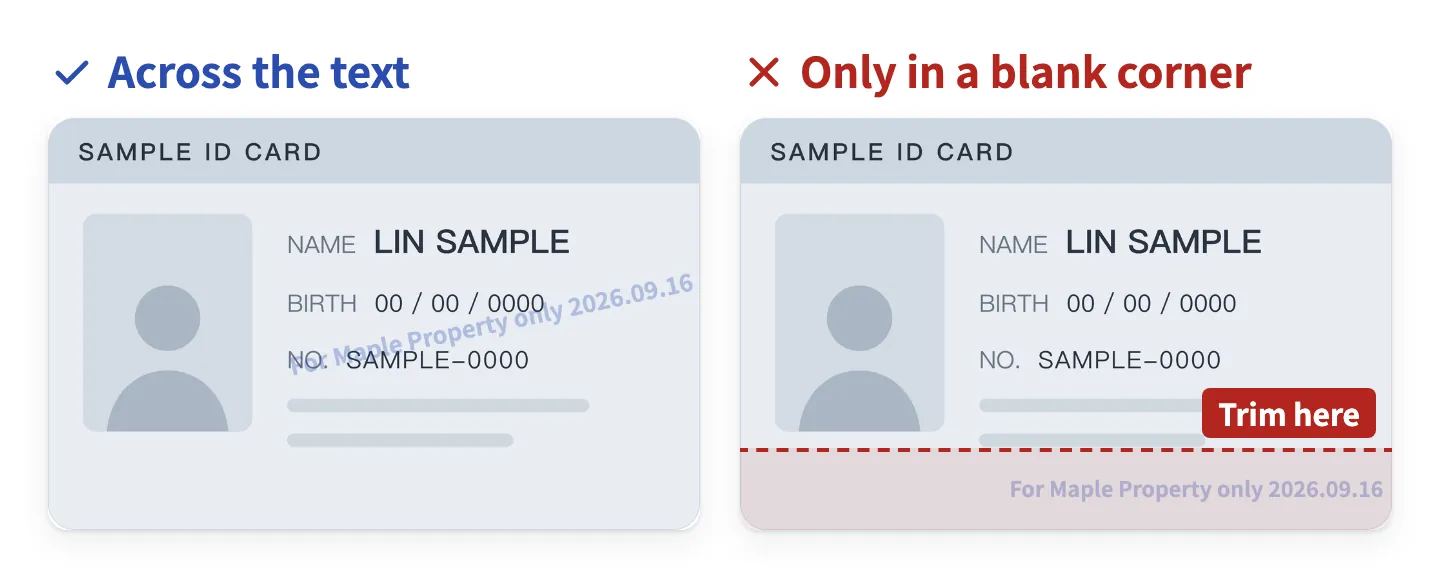
At the same time, do not bury the photo, the name or the document number. Whoever receives the copy still has to read those, and an unreadable copy usually gets sent back.
- Keep the opacity low enough that the text underneath is still readable.
- In tiled mode, keep the type small and leave space between rows so the fields are not covered end to end.
- In single placement, cross a block of text and avoid the portrait. Do not park it in a corner.
Ask before you hand it over
Some offices want to see the original in person, and some will not accept a copy with anything written over it. Ask the person handling your case whether a note is fine and how they want it worded, so you do not have to make the trip twice.
How to set the watermark up
The defaults (tiled, 30% opacity, -30° angle, ink blue) suit most documents. The notes below help if you want to adjust them.
Tiled or single placement
Tiled repeats the same sentence diagonally across the whole document, so it survives any crop. It is the safer option and the default.
Single placement puts the sentence in one spot. The result is cleaner and the details underneath stay easy to read, which helps when the recipient wants a light touch. The downside is that one mark is easier to crop or paint out. In this mode you can drag the text on the preview to position it.
A signature or logo image watermark has the same two arrangements, set separately from the text: tile the sentence and place the signature once, for example. Text and image watermarks can each be included in the export or left out.
Aim for 25% to 40% opacity
Below 20% the mark tends to vanish once the copy is photographed, printed or squeezed through a messaging app. Above 50% it covers the document so the recipient cannot check the details. Between 25% and 40% usually works for both.
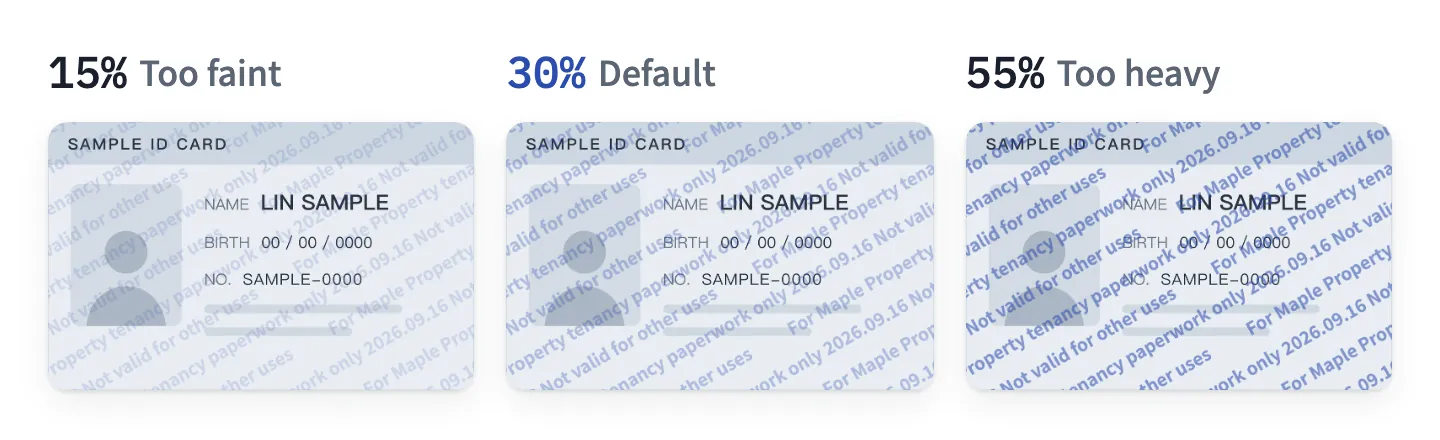
On a dark document or an underexposed photo, raise the opacity a little or turn on "Text outline" so the letters get a contrasting edge.
Choosing a colour
Pick a colour that contrasts with the background and does not blend into the printed text.
- Ink blue: the default. Readable on most documents and it looks like a handwritten note.
- Black: good when the copy will be photocopied in black and white, but it can merge with the printed text.
- Red: stands out, except on documents with a red or orange background.
- Grey: understated and fine on light documents. Raise the opacity if it gets too faint.
- White: only for dark documents, and clearer with the outline on.
Type size
For card sized documents (ID card, health card, driver’s licence) 8 pt to 12 pt works well, roughly the size of the text already printed there. The tool defaults to 10 pt. Too large and the sentence no longer fits on the card, so only a fragment shows and the meaning is lost. Too small and it is unreadable once printed.
For other documents (passport, bankbook) the size is shown as a percentage of the image’s long edge, so rotating the photo by 90° does not change it. Start from the default and adjust to the text on the document. A single placement sentence that will not fit on a portrait photo is scaled down automatically.
Print both sides on one A4 sheet
When a landlord, employer or bank wants a paper copy, you can print the watermarked front and back on a single A4 sheet. On a computer, press "Print on A4" at the bottom right of the editor; on a phone, open "Preview" first and press "Print on A4" there. Pick a layout and press "Print" to open the browser’s print dialog.
- Card sized documents (ID card, health card, driver’s licence) print at actual size, 85.6 × 54 mm, the same reference the rulers in the editor use.
- Stacked is the default: both sides sit near the top of the sheet, leaving the space below free for a handwritten note or signature. When both sides are cards, you can switch to side by side.
- Other documents (passport, bankbook) have no fixed size, so they are scaled to fit on the sheet and are always stacked.
- If you only added the front, only the front is printed. The watermark uses your current settings, so the print matches the downloaded image.
Getting the printed size right
In the print dialog, set the scale to "Actual size" or 100%, not "Fit to page" or "Scale to fit", or the card comes out larger or smaller than it really is. Choose A4 paper.
Once printed, lay the card on the paper: if the sizes match, it worked. A card photo kept whole with "Use whole photo" is not in card proportions, so it is scaled to fit rather than printed at actual size. To print it at actual size, go back to "Crop and straighten" and drag the four corners onto the corners of the card.
Printing uses your browser’s own print function: the sheet is laid out in your browser and sent straight to the printer, and the photo is still never uploaded.
Is my photo uploaded
No. Reading the photo, straightening the crop, adding the watermark and writing the output file all happen in your browser. This tool never sends the photo to any server. The photo lives in this tab’s memory only, and it is gone when you close or reload the page.
- The downloaded or shared image is redrawn from scratch, so it carries none of the original capture data (EXIF): no timestamp, device model or GPS location.
- The browser remembers watermark styling only (font, colour, opacity and so on) so you do not have to set it up again. The text you type and the photo itself are never stored.
- Watermark fonts are downloaded from Google Fonts. Google receives the request for the font files, and that request does not contain the watermark text you typed.
- A signature or logo image you add is used in the browser only.
Check it yourself
Once a photo is chosen and the editor is open, you can keep editing offline; only switching fonts still needs the network. To check for yourself, pick a photo while online, wait for the editor and choose the font you want, then put the phone into airplane mode. Typing the text, adjusting the watermark and downloading all still work.
Fonts need the network: offline, switching to a font you have not used yet, or typing characters that have not been shown yet, falls back to a font already on the device.
For the details on fonts, analytics and server logs, see the privacy notice.
Frequently asked questions
Does a watermark stop misuse
A watermark lowers the chance of a copy being reused, but it is not a guarantee. It states plainly what the copy was for, so reuse is easier to notice. It cannot stop someone from editing the image or re photographing it.
So still hand copies only to organisations that genuinely need them, and feel free to ask how the copy will be stored or destroyed once your case is closed.
Where did my download go on iPhone
Safari saves downloads into the Downloads folder of the Files app, not into Photos. To get the image into your photo library, use Share and then Save Image instead.
Download does nothing inside LINE or Facebook
The in app browsers in LINE, Facebook and Instagram often cannot download or share files. Open this page in your normal mobile browser (Safari or Chrome) instead.
Inside LINE the tool shows an "Open in default browser" link above the buttons. In other apps, use the menu in the top corner to open the page in a browser, or copy the address and paste it there.
My HEIC photo will not open
HEIC is the default photo format on iPhone. Picking a photo directly on the phone usually converts it to JPG automatically, so problems are rare. They show up more often after copying photos to a computer and opening them in a browser without HEIC support. Things to try:
- Open this page in Safari.
- Convert the photo to JPG first, then select it.
- On iPhone, set Settings › Camera › Formats to "Most Compatible" so new photos are JPG.
Can I do the front and the back together
Yes. Finish the front, switch to "Back" and select "Add back" to take or pick the second photo. Both sides share one set of watermark settings, so you only adjust it once.
Download saves one JPG per side; sharing sends both images at once. For a paper copy, "Print on A4" puts both sides on one A4 sheet.
The printed copy is the wrong size
Usually the print was scaled. In the print dialog, set the scale to "Actual size" or 100% instead of "Fit to page" or "Scale to fit". Some printers have their own "fit to paper" setting, so switch that off too. Choose A4 paper.
Only card sized documents (ID card, health card, driver’s licence) cropped to card proportions print at actual size. Other documents, such as a passport or bankbook, have no fixed size and are always scaled to fit on the sheet.
Can I add a signature or a logo
Yes. A signature or logo can be added as an image watermark in PNG, JPG or WebP, with the white background removed by default. Like the text, the image can be tiled across the whole document or placed once, with size, opacity and angle to adjust. The image is used in your browser only and is never sent to a server.
Text and image watermarks are exported independently, so you can output the signature alone. If neither is switched on, download, share and copy are disabled so you cannot hand over a copy with no watermark at all. Fonts come from the built in list; uploading your own font file is not supported.
Should I cover the number on the back
Some recipients accept a copy with the fields they do not need blacked out, such as a number on the back. Others need to see everything to check your details. Ask what they require before you cover anything.
To cover something, pick "Add cover" in the photo layer, drag the block over the area and resize it.