Speak Cards English Practice
English speaking cards made for real-time AI voice chat
 Tap the image to open the tool ↗
The hard part of learning to speak a language is rarely the knowledge. It is not daring to open your mouth, and having nobody to practise with. Real-time AI voice covers exactly that gap, since it is available whenever you are and it does not mind mistakes. This page shows how to pair the Speak Cards material with an AI and actually get talking.
What this tool does
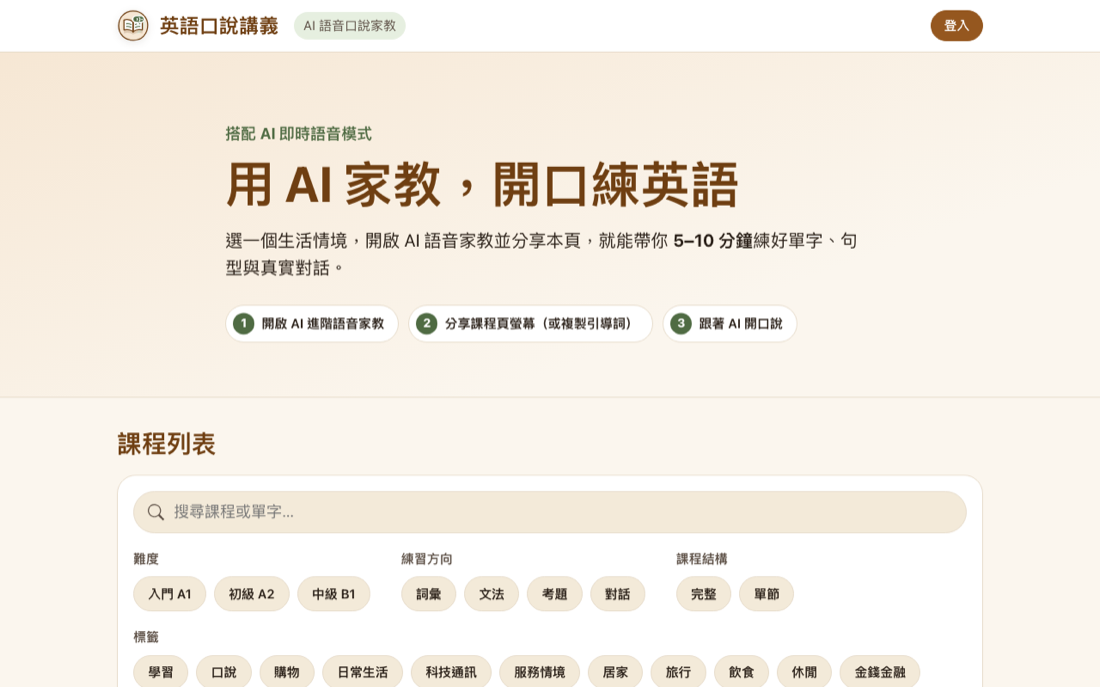
Speak Cards is a set of English speaking handouts designed to be used with ChatGPT Advanced Voice. Each everyday situation is a lesson card. You start a voice session, show the AI the lesson page, and it works through the material with you like a tutor, finishing a scenario in five to ten minutes.
There are 47 scenario lessons, and each one contains:
- A bilingual vocabulary list to set up the core words for the situation.
- Grammar and sentence patterns with examples of how those words turn into sentences.
- A dialogue script showing the conversation from start to finish.
- A role-play and a wrap up, where you speak for real and then review.
The learning material is in English and the interface is in Traditional Chinese. It suits anyone who wants speaking practice but has nobody to practise with.
Why practising with AI works
Studying vocabulary and grammar alone means a lot of input and almost no output. Voice chat fills in the missing half:
- Available any time: no scheduling, no audience, no embarrassment at two in the morning.
- It answers back: you get a real exchange rather than a recording you listen to.
- It has structure: with the lesson in front of it, every session runs vocabulary, then patterns, then dialogue, then role-play, instead of drifting.
That scaffolding is the difference between a useful session and staring at an open voice chat wondering what to say. You always know what comes next.
Step by step
- Pick the scenario you want to practise in Speak Cards, ordering at a coffee shop for example.
- Open ChatGPT on your phone or computer and start Advanced Voice.
- Share your screen so the AI can see the lesson page, or paste the lesson content into the chat.
- Give it an opening instruction to run the lesson with you. There is a prompt below you can reuse.
- Work through vocabulary, patterns, dialogue and role-play out loud, then ask for a wrap up at the end.
A prompt to start with
"You are my English speaking tutor. Use the vocabulary, sentence patterns and dialogue script on the screen to practise this situation with me in English. Start by reading the key words with me, then work through the sentence patterns one at a time, and finish with a role-play of the whole scene. When I get something wrong, correct my pronunciation and grammar gently and explain it in simple English. Let's begin."
Adjust it to your level. If you are starting out, ask it to speak more slowly and stick to simple words. If you want a challenge, ask it to throw in a follow up question you have not prepared for.
What one lesson looks like
Taking the coffee shop scenario:
- Warm up words: the AI runs through order, recommend, to go, refill and the rest with you.
- Pattern practice: you say lines such as "Can I get a latte to go?" and "What would you recommend?"
- Scripted dialogue: the AI plays the barista, you play the customer, and you run the whole order.
- Role-play with a twist: the AI changes something, say the drink you wanted is sold out, and you have to react on the spot.
- Wrap up: it reviews what went well and what to work on.
Getting more out of it
- Shadowing: ask the AI to read a line, then repeat it immediately, copying the rhythm and intonation. Nothing builds a feel for the language faster.
- Ask for pronunciation correction explicitly, otherwise the AI will happily keep the conversation going and let your mistakes slide.
- Raise the difficulty with roles: an impatient server, a fast talking stranger on the street, anything that forces you to improvise.
- Little and often: one lesson of five to ten minutes a day beats a two hour session at the weekend.
Questions people ask
Do I need a paid ChatGPT plan? Availability and usage limits for Advanced Voice depend on OpenAI's current plans, so check their announcements. The Speak Cards material itself is free.
What level is this for? The scenarios come from daily life, ordering food, asking for directions, seeing a doctor, so beginner and intermediate learners get the most out of it. More advanced learners can use it to stay sharp and practise reacting on the spot.
Does the AI record what I say? The voice session runs through ChatGPT, so your audio is handled under OpenAI's privacy policy. Speak Cards only provides the lesson material and never touches your conversation.
How does this compare with a human tutor? AI wins on availability, zero pressure and unlimited repetition. A human tutor wins on genuine interaction and on the finer cultural and pragmatic corrections. Use the AI as the place you speak every day and it does its job well.
After the speaking practice, take a look at the other tools: Compound Interest Calculator, Kaomoji, QR Code Studio, or go back to all tools.