
QR Code Maker Guide
Pick the right type, error correction and size, and make a QR code that still scans once it is printed
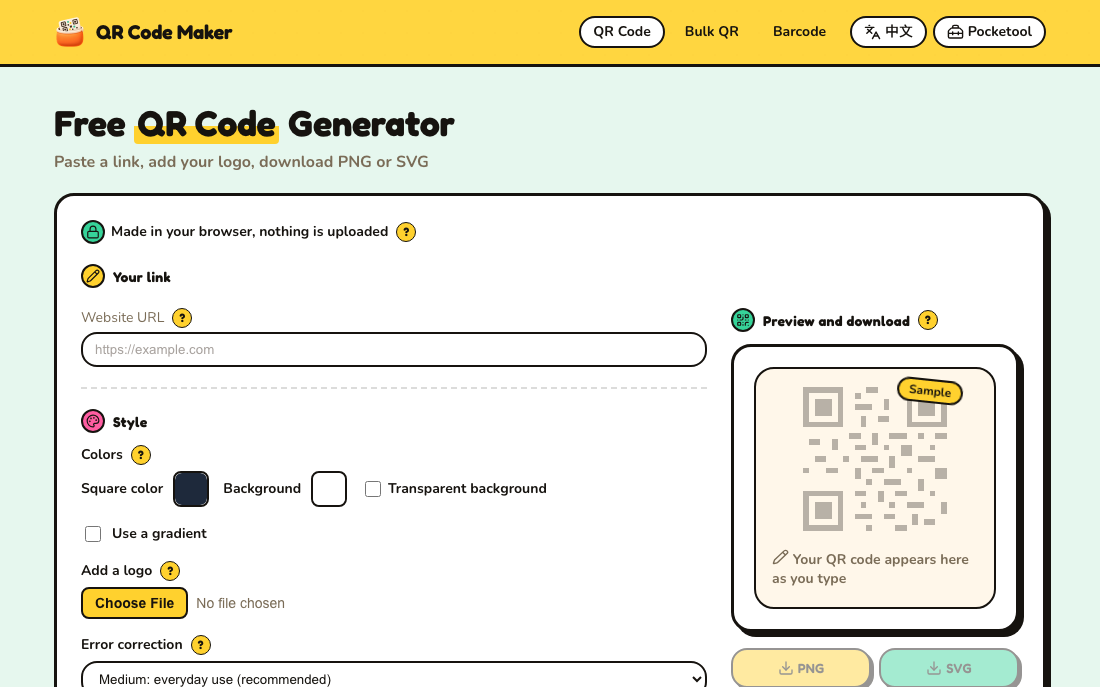 Tap the image to open the tool ↗
Generating a QR code takes seconds. The time goes into the decisions before that: a link or a WiFi code, how big the logo can be, how large it has to be printed on a table card for people to scan it. Each type page and guide on QR Code Maker (formerly QR Code Studio, renamed in September 2026 at the same address) already walks through the steps, so this page does not repeat them. It helps you settle those decisions first and then points you to the right page.
The generator, the batch page and the barcode page are in English. The type pages listed further down, the scanner and the guides are still only in Traditional Chinese, where the site header shows its Chinese name, QR Code 製造機; the controls are simple enough to follow there too. Each page has the tool at the top and an explanatory article below it, and the longer notes on each field open from the ? next to its label.
What is in QR Code Maker
- QR code generator: seven types (see the table below), with foreground and background colour (the background can be transparent), gradient, logo, error correction level and size. Download PNG, SVG or JPG, or copy the image.
- Barcode generator: Code 128, EAN-13, EAN-8, Code 39 and ITF-14, with the EAN check digit worked out for you, and PNG or an SVG that carries real millimetre dimensions.
- Batch generator: make dozens or hundreds of QR codes or barcodes at once by pasting a list from Excel, entering one item per line or setting a numbered sequence, optionally inside a URL template. EAN-13 check digits are worked out for every row and rows with problems are flagged. Download a ZIP of PNG or SVG files, or print straight onto label sheets: US Letter sheets in the same sizes as common Avery products, or A4. You can start at any label, add one to three lines of text under each code, and use the test page and offset adjustment to line the print up. The list stays in your browser.
- QR code scanner: when you already have a code as an image or a screenshot, drop it in, pick the file or paste it, and the content is decoded and shown as text first, never opened automatically.
- Guides: from how QR codes work to LINE QR codes, listed further down.
Generating and decoding both happen inside your browser. What you type and the images you drop in are not uploaded.
Decision one: the type
The type decides what the phone does once someone scans the code. Start from the action you want, then pick the type:
| Type | What the phone does after scanning | Typical use |
|---|---|---|
| URL | Opens a web page | Website, menu, event page, form |
| WiFi | Offers to join the network | Shop, guesthouse, meeting room |
| vCard | Offers to save the contact | Business card, stand, talk slides |
| Text | Shows a piece of text | Serial numbers, notes, event passwords |
| Opens the mail app with recipient, subject and body filled in | Support inbox, sign-up replies | |
| Phone | Brings up the number, ready to call | Service line, flyer |
| SMS | Opens a text message with number and content filled in | Event sign-up, voting |
Two trade-offs come up often:
- If the content might change, use a URL. These are static QR codes, so a printed code cannot be edited. If the code holds a link, though, you can change the page behind it at any time without reprinting. Menus, price lists and event details all work well this way.
- More data means a denser code. A vCard with an address, company, job title and two phone numbers turns into very fine modules, which struggle on something as small as a business card. Keep it to a name and a number, or link to a personal page instead. WiFi is similar: change the password and the code has to be made again.
Decision two: error correction and a logo
Error correction decides whether a code can still be read when part of it is dirty or covered. A higher level is more robust but makes the modules denser at the same size. The tool offers four levels, from lowest (simplest pattern) to highest (best for a logo).
- On a screen only: the recommended middle level is enough.
- Printed, outdoors or likely to be handled: go one level higher.
- A logo in the middle: the logo covers real data and error correction has to make up for it, which is why the tool raises the level automatically when you add a logo. Keep the logo centred and modest in size, and never cover the three large squares in the corners.
The guides go into the reasoning and the proportions: choosing an error correction level and adding a logo that still scans.
Decision three: the print size
When a QR code will not scan, the content is often fine and the problem is that it was printed too small or too close to the edge. Check your layout against these rules of thumb before printing:
| Scanning distance | Minimum code width, about |
|---|---|
| 30 cm (table card, business card) | 3 cm |
| 1 m (poster, counter) | 10 cm |
| 3 m (sign by the door) | 30 cm |
The table uses the rule of thumb that the scanning distance is about ten times the code width. The more content, the denser the code, so print it larger again. A few more details:
- Leave a quiet zone: keep a clear margin around the code, about four modules wide. A code pressed against artwork or a border often fails.
- Print from SVG: vector stays sharp at any size, so use it for print shops and large formats. The SVG guide explains why.
- Keep the contrast high: dark modules on a light background are the safe choice. Light on dark is inverted and some scanners cannot read it, and a gradient should never fade close to the background colour.
- Watch the material: glossy surfaces and curved ones such as bottles can stop a phone from focusing.
Before you print
- Scan it with at least two different phones, for example one iPhone and one Android phone.
- Scan it from the distance people will actually use, not held up close to the screen.
- Check that the link, the WiFi password including upper and lower case, and the phone number all come out right.
- Do a small test print and scan that too, because printed colours are not always what the screen shows.
You already have a code as an image
For a screenshot, an e-ticket or a payment code on a web page that is awkward to scan with the phone in your hand, use the QR code scanner. It reads QR codes and the five barcode formats above, decodes in the browser, always shows the result as text first, and only offers an open button for http and https links, so a forged link is not opened by accident. It does not use the camera. For scanning a physical code with your phone, see how to scan a QR code.
Product barcodes are one dimensional
The striped codes on packaging and stock labels come from the barcode generator, not the QR code generator. Use EAN-13 for retail products, and Code 128 for logistics or internal labels if you are unsure. The bars are always plain black and white with no logo, because the red light scanners at checkouts cannot see red, orange or yellow, and barcodes have no error correction to compensate.
Guides (in Chinese)
- What a QR code is: how it works, uses and safety
- Choosing an error correction level: L, M, Q and H
- Adding a logo to a QR code that still scans
- Downloading a QR code as SVG for print
- How to scan a QR code with a phone camera, LINE or a computer
- Making and sharing a LINE QR code
Questions people ask
Why is my QR code not scanning? Work through the list: is there a quiet zone, is it large enough, is the contrast strong enough and not inverted, is the logo too big or over a corner marker, is the print blurry. Going through it in order usually finds the cause.
Can I change the shape of the modules? The adjustable settings are foreground colour, background colour (which can be transparent), gradient, logo, error correction level and size. Module shapes are not offered.
Will the code expire? No. These are static QR codes. The content is encoded in the image itself with no redirect service in between, and there is no scan limit.
With the code ready, see the envelope and English address notes in the Taiwan ZIP Code Lookup guide, or go back to all tools.
QR Code is a registered trademark of DENSO WAVE INCORPORATED in Japan and in other countries.