
Office Tools
Free browser tools for office administrators in Taiwan, with no sign-in
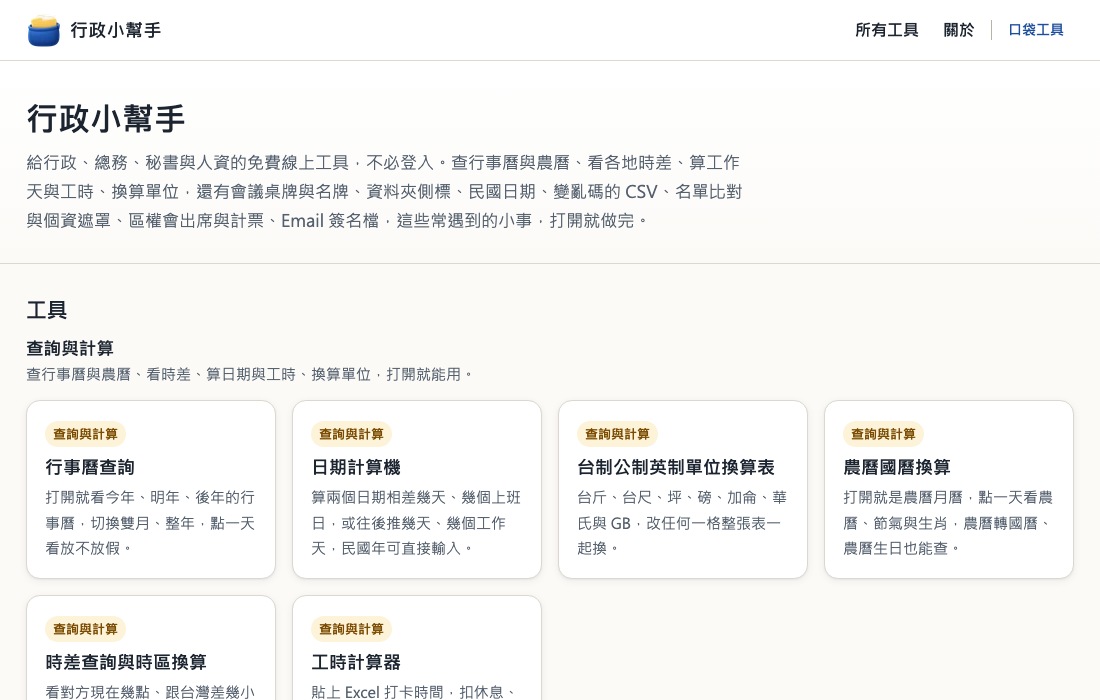 Tap the image to open the tool ↗
Office admin work is full of small jobs that keep coming back. Before booking a meeting, you check whether the date is a public holiday. You count working days to a deadline, work out the time difference before a call with an overseas office, and add up clock-in times at the end of the month. Before an event, you make a batch of table tents and name badges. Government and ERP systems export Republic of China (Minguo) dates that Excel does not understand, a CSV file opens with the Chinese text garbled, and names need masking before a list of winners goes up. None of it is hard, but each time means looking something up, hunting for a template or writing a formula. Office Tools, called 行政小幫手 in Chinese, gives each of these jobs its own tool. This page covers what each tool is for, how they work, and what to set before you print.
The tools are built for Taiwan and the interface is in Traditional Chinese only. There is no English interface yet. This page names the main buttons so you can find your way around.
A separate Japanese section, 事務ツール, has tools built for offices in Japan: converting between Japanese era years (wareki) and Gregorian years with an age table, writing amounts in daiji numerals for receipts and gift envelopes, a Japanese public holiday calendar with long weekends and an .ics download, and paid leave entitlement under the Labor Standards Act. Its interface is in Japanese.
Open Office Tools (Chinese interface) ↗
The tools
Not sure where to start? Pick by the job in front of you:
- Looking up a date, working out a time or converting a unit: Lookups and calculations
- Printing a name list as table tents, badges or binder labels: Print layouts
- Cleaning up a column of data or a CSV file, or working out the quorum for a condominium meeting: Data clean-up
- Making an email signature: Documents and email
Lookups and calculations
- Calendar lookup: before scheduling a meeting, a shift or a delivery, enter a Minguo or Gregorian date (116/2/9 or 1160209 both work) to see the weekday, the ISO week number, the Chinese lunar date, and whether government offices are open that day. If they are closed, it says why, such as a national holiday or a make-up day off. Year-by-year calendar pages list every long weekend, the make-up days off and leave-planning tips, and offer an .ics download for Google Calendar or Outlook.
- Date calculator: use it for delivery dates, document deadlines or the last day of a probation period. Count the days and working days between two dates, or add or subtract days, weeks, months, years or working days. Minguo years can be typed in as they are, or you can pick a date from the pop-up calendar beside each field, which marks national holidays, make-up days off and make-up workdays. Working days follow the official government office calendar by default, skipping national holidays and make-up days off, and for a schedule such as six days on and one off you can choose which days of the week are rest days. The page includes the matching Excel NETWORKDAYS and WORKDAY formulas and a holiday list you can copy.
- Unit converter: for the Taiwanese catty on a purchase order, the Taiwanese foot on a renovation quote, ping and jia for land and floor area, or the pounds, gallons, degrees Fahrenheit and gigabytes in an import spec. Type into any cell and every unit in that table updates at once. Each unit comes with its definition and source, and the copy button on each row copies the value, ready to paste into Excel.
- Lunar calendar converter: for planning a year-end party, a spring banquet or festival offerings, or entering an older relative's lunar birthday into a system that only takes Gregorian dates. It converts both ways and shows leap months, solar terms, the stem-branch year and the zodiac animal. Pick a lunar birthday to see its Gregorian date for each of the next 10 years. The tool page also has tables of the lunar festivals and the 24 solar terms.
- Time zone converter: before a call or an email to an overseas client or office, see the current time in cities such as Tokyo, New York and London and how far ahead or behind Taiwan they are, with daylight saving time taken into account. Enter a time to convert it for every city, and the tool notes when the date moves to the next or previous day. The meeting planner highlights the hours when everyone is at work.
- Work hours calculator: for adding up a month of clock-in records. Paste the dates and clock-in and clock-out times from Excel, choose how breaks are deducted, and you get each day's hours, any time over 8 hours, the days worked and weekly totals. Overnight shifts work too. The results paste back into Excel row for row. It does not calculate overtime pay or judge whether the hours are lawful.
Print layouts
- Table tent maker: before a meeting, seminar or year-end banquet, copy the department, job title and name columns (one to three columns) from Excel and paste them in to lay out a whole batch of A4 triangular table tents (one per page) or folded cards (two per page). Each name is sized to fit its own width, and the back is printed upside down so both sides read correctly once folded. For weddings and dinners, switch to place cards at eight per page, or enter a number of tables to get banquet table numbers.
- Name badge maker: for seminars, training days or orientation. Paste a name list from Excel and choose business card, credit card or portrait size. Each of these fits 10 to an A4 sheet with cut lines, ready to cut out and slip into badge holders. You can also enter your own width and height, and the tool works out how many fit on a page. Measure your badge holders first and compare them with the table of common holder inner sizes on the page.
- Binder label maker: one binder per line, or paste year, category, title and department (one to four columns) from Excel. Pick a common spine width or enter your own width and length in millimetres. Labels are set vertically by default, as Chinese spine labels usually are, with 2- to 4-digit years and numbers turned upright, each label shrunk to fit, and the whole batch laid out on A4 with cut lines. Wider binders can use two vertical lines or horizontal text. Categories can get a coloured band, or borders of different weights for black and white printers.
Data clean-up
- ROC and Gregorian date converter: Taiwan's government forms and many business systems use the Minguo calendar, where the year is the Gregorian year minus 1911, so 2026 is year 115. Paste a column of up to 10,000 dates and convert them either way. It recognises seven-digit dates (1150926), slashed dates (115/09/26), dates written with the Chinese characters for year, month and day, Gregorian dates and Excel date serial numbers. Blank rows stay in place, and rows that cannot be converted stay too, with the reason, so the copied column lines up row for row when you paste it back into Excel. A formula cheat sheet for older Excel versions is included.
- CSV fixer and Excel converter: a CSV file from a bank, an online shop back end or a government site opens in Excel as garbled Chinese, or the leading zeros of phone numbers and postcodes disappear. Drop the file in: the tool detects UTF-8, Big5 or UTF-16, shows the first 20 rows decoded both ways so you can pick, and lets you store each column as text or numbers. Download an .xlsx file, a CSV saved as UTF-8 with a byte order mark (BOM), or a Big5 CSV for older systems that accept nothing else.
- Name masking tool: before a list of prize winners, admissions or payments goes up, paste the whole list from Excel and choose a rule for each column: name, phone, national ID or resident certificate number, email, address, date of birth, student number or licence plate. Names become 王○明, mobiles 0912678 and ID numbers A12*789. You can also apply the Taipei City Government's personal data masking procedure as a preset. The rows and columns stay the same, so the result pastes straight back into Excel.
- List comparison and merge: registrations against the sign-in sheet, or who should have paid against who did. Paste both lists from Excel, match on name, staff number, ID or phone, and see who is missing, who is not on the list and who needs checking. You also get a present or absent column that lines up row for row with the first list, so you can paste it right next to the original without writing a VLOOKUP. The two lists can also be merged with duplicates removed.
- Condominium meeting quorum calculator: before a meeting of unit owners under Taiwan's Condominium Administration Act, paste the unit numbers, owners and floor areas to get each unit's ownership share. It then shows the quorum and voting thresholds, by headcount and by share, under Articles 31 and 32 or a custom rule from your bylaws. Check owners in at the door and tick the votes for each motion, and a bar at the top shows how many more units and how much more share you still need. The calculator is not legal advice, and your bylaws take precedence where they set different rules.
Documents and email
- Email signature generator: when a new colleague needs the same signature as everyone else, fill in names in Chinese and English, job title, extension and company details, pick a layout and watch the preview, then copy the signature in one click into new and classic Outlook, Outlook on the web or Gmail. An administrator can create a template link that carries only the company fields, so colleagues just add their own name, title and extension.
Paste a column, paste it back
The table tent, name badge, binder label, date, name masking, list comparison, quorum and work hours tools all start the same way: copy one or more columns from Excel or Google Sheets and paste them into the input box. The columns split automatically, so there is no need to save a file or fill in a template first. The CSV tool takes the file itself.
The date converter, name masking tool, list comparison tool and work hours calculator keep your row count, so the result can be pasted back into the spreadsheet as a whole column or block. Blank rows stay where they are, and a row with a problem stays in place and is flagged instead of being skipped, so after pasting you can see at a glance which rows need fixing by hand.
The calendar lookup, date calculator, lunar calendar and time zone tools need no list at all: type a date or a time and the answer appears. Unit conversions and the date calculator's holiday list can be copied into Excel, and the year calendar pages offer an .ics file for your calendar app.
Three settings before you print
The table tent, place card, name badge and binder label layouts print through the print dialog of Edge or Chrome. Before the first print:
- Set the scale to actual size (100%), not "fit to page", or the whole sheet shrinks and the fold lines, badge sizes and label widths come out wrong.
- Turn off headers and footers, or the page address and date end up printed along the edge.
- Print the first page and measure the calibration ruler. The first page carries a 5 cm ruler. If it measures exactly 5 cm, the size is right and you can print the rest.
Edge or Chrome on Windows is the recommended setup. The font choices are DFKai-SB (標楷體), Microsoft JhengHei (微軟正黑體) and PMingLiU (新細明體), which come with Windows. Macs and phones usually lack DFKai-SB and PMingLiU, so when the page cannot find them it warns you and switches to a similar font. To print in DFKai-SB, use a Windows computer.
For table tents and place cards that stand up properly, use card stock and set the printer's paper type to heavy paper.
Office Tools does not create PDF files. If you need a PDF, choose "Save as PDF" as the printer in the print dialog.
Your data stays in your browser
Names, addresses, amounts, dates, times and the files you choose are processed only in your browser. Nothing is uploaded, written into the page address or saved in the browser, and it is gone when you close the tab. There are two exceptions, and both happen only when you press the button:
- "Save to this device" in the quorum calculator: in case the browser crashes mid-meeting, you can keep the owner list and check-in status in this device's browser. It expires after 7 days and is removed the next time you open that page. You can delete it at any time, and nothing is saved by default.
- The company template link in the email signature generator: it carries only the company name, main phone number, website, address, logo address and layout settings, never names, job titles, extensions, mobiles or email addresses. That data sits after the # in the link, which is never sent to the server. When a signature has a logo address, your browser fetches the image from that address.
Office Tools uses Google Analytics to count usage, recording only counts and choices, such as the number of sheets or rows, which layout or feature was chosen and what kind of result came out, never the names, dates, times or numbers you type. The full details are in the Office Tools privacy notice (in Chinese).
Not in this version yet
- The quorum calculator cannot print the attendance register or proxy forms yet, and does not cover general meetings of civil associations.
- The list comparison tool compares two lists; counting attendance per person across three or more sign-in sheets is still to come.
- The calendar lookup and date calculator only cover recent years of the official government office calendar, so earlier years have no holiday data. A year that has not been announced yet is added once the government publishes it.
- The common spine widths for binder labels are estimated from a stationery maker's published specifications. If they do not fit, enter your own width and length.
Questions people ask
Does it cost anything, or do I need an account? No on both counts. Every tool is free, needs no sign-in and installs nothing.
Do the holidays in the calendar and date calculator apply to private companies? Not always. Both tools follow the official calendar for government offices. Private employers and their staff agree on when a make-up day off falls, so it may not match the government calendar. If your company's days off differ, switch the date calculator to skip weekends only and check the result against your company calendar.
Does the work hours calculator work out overtime pay? No. It only lists the time over 8 hours each day, without treating it as overtime, and does not judge whether the hours are lawful. For overtime pay on a monthly salary, try the overtime pay calculator on the Office Life Calculator (in Chinese).
Are the tools useful outside Taiwan? Partly.
- Work anywhere: table tents, place cards and name badges take names in any language; the CSV fixer handles UTF-8, Big5 and UTF-16 files; the list comparison and email signature tools work with any list or company; the lunar calendar converter and the metric and imperial units in the unit converter are universal.
- Built around Taiwan: the time zone converter measures everything against Taiwan time; the calendar lookup and date calculator use Taiwan's holidays; binder labels follow the vertical layout of Chinese spine labels; the date converter is for the Minguo calendar; the name masking rules and quorum calculator follow Taiwanese formats and law.
The interface is in Chinese throughout.
Is masking a name the same as anonymising the list? No. Masking hides part of each value, which is not the same as de-identification. Whether a list can be published is still up to the rules of your organisation.
The print came out smaller than expected. What went wrong? Measure the calibration ruler on the first page. If it is not 5 cm, the scale was most likely set to "fit to page". Switch it to actual size and print again.
How do I suggest a new tool or report a problem? Use the contact page. Mention the browser and printer you used, which helps track the cause down faster, and please do not attach real name lists or personal data.
For Taiwan leave, overtime and severance calculations, try the Office Life Calculator, or go back to all tools.