
How to Practise English Shadowing with YouTube Videos
Paste a YouTube video with English subtitles, then listen and repeat one sentence at a time
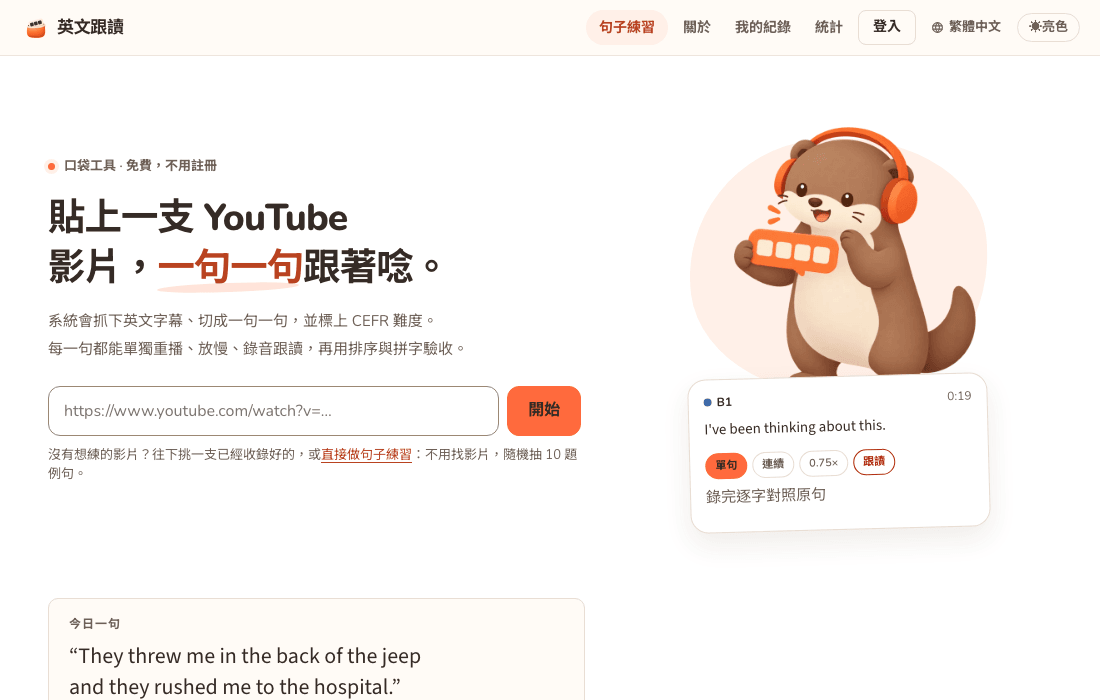 Tap the image to open the tool ↗
Shadowing is a simple technique: you hear a line of English and say it back half a beat later, following the speaker like a shadow. The method is easy. The material is the hard part. A video keeps rolling, and before you have caught up with one sentence the next has already started. I built English Shadowing to fix exactly that. It splits the English subtitles of a YouTube video into sentences, and every sentence can be replayed on its own, slowed down and recorded against the original. This page walks through the practice routine I had in mind while building it, and is honest about what it cannot do.
One thing to know up front: the interface is in Traditional or Simplified Chinese for now. The English you practise is real English from the video, and this guide names each button so you can find your way around.
Start practising (Chinese interface) ↗
What shadowing is and who it suits
Shadowing is often associated with interpreter training and has since spread to language learning in general. It does not train reading comprehension. It trains your mouth to keep up with your ears: you copy the speaker's rhythm, stress, linking and intonation, and turn what you hear straight into speech you can produce yourself.
It works particularly well if you:
- Read well but struggle to listen: you understand the text, but lose the thread as soon as a native speaker speeds up. Shadowing makes you process every word at normal speed.
- Speak correctly but not naturally: the grammar is fine, but every word gets the same weight and length. Shadowing makes the strong and weak beats of English audible.
- Have nobody to practise with: you can do it alone, and nobody hears your mistakes.
If you are still learning the basics, start with short sentences and slower material, or use the sentence drill described below, which is levelled and starts at A1.
How the tool turns a video into practice material
Paste a YouTube URL or an 11 character video ID on the home page and the tool fetches the English subtitles, either the ones the creator uploaded or YouTube's automatic captions. Then it does three things:
- Splits sentences at full stops, question marks and exclamation marks. Very long sentences are split at a comma or the start of a clause, and sentences under five words are merged into a neighbour, so each line is a sensible length to shadow.
- Estimates a level for each sentence from how common its words are, how long it is and how fast it is spoken, on the CEFR scale from A1 to C2. The whole video gets a representative level and a difficulty distribution too.
- Lays out a practice page, with the video, the difficulty chart and an outline on the left, the sentence list on the right and a player bar along the bottom.
The CEFR label is an estimate based on word frequency, not an official test result. A video marked B1 will still contain A2 and C1 sentences. Listening to one line tells you more than the label. The rules behind the splitting and the levels are written up in a developer note, how YouTube subtitles are split into sentences, which is in Chinese.
One practice session, step by step
This is the routine I suggest. It takes ten to twenty minutes. Pick five to ten sentences; there is no need to get through the whole video.
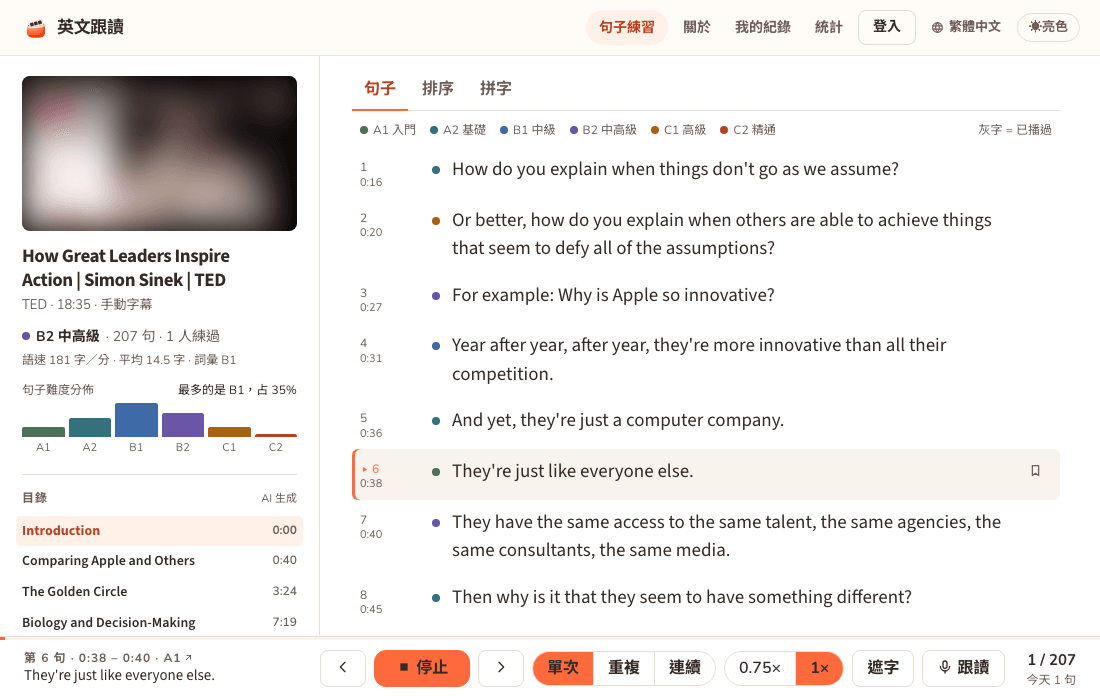
- Listen once without the text. Press 開始練習 (start practice) to load the subtitles and the player, then turn on 遮字 (mask, keyboard
H) in the player bar. Sentences you have not played yet are hidden, so you listen for the gist first and note what you could not catch. - Loop one sentence. Clicking a sentence plays only that sentence. Switch the mode to 重複 (repeat, keyboard
2) to loop it, and drop to 0.75x if it is too fast.Rreplays the sentence and the arrow keys move to the previous or next one. - Check the text. Turn the mask off and look at the words you missed. Usually it is linking and weak forms, such as want to sounding like wanna. That is exactly what shadowing trains.
- Shadow it. Press 跟讀 (shadow) in the player bar and a recording panel opens under the current sentence. Press 聽原音 (play original), then 開始錄音 (start recording) and speak along. Recording stops by itself when you pause.
- Compare and try again. Read what the machine heard, then press 我的錄音 (my recording) and listen back and forth against the original. Record the same line two or three times and focus on rhythm and stress rather than hitting every word hard.
- Finish with a quiz. The 排序 (word order) and 拼字 (spelling) tabs draw ten random questions at the level you choose. Only your first answer counts, and words you spell correctly go into your word list.
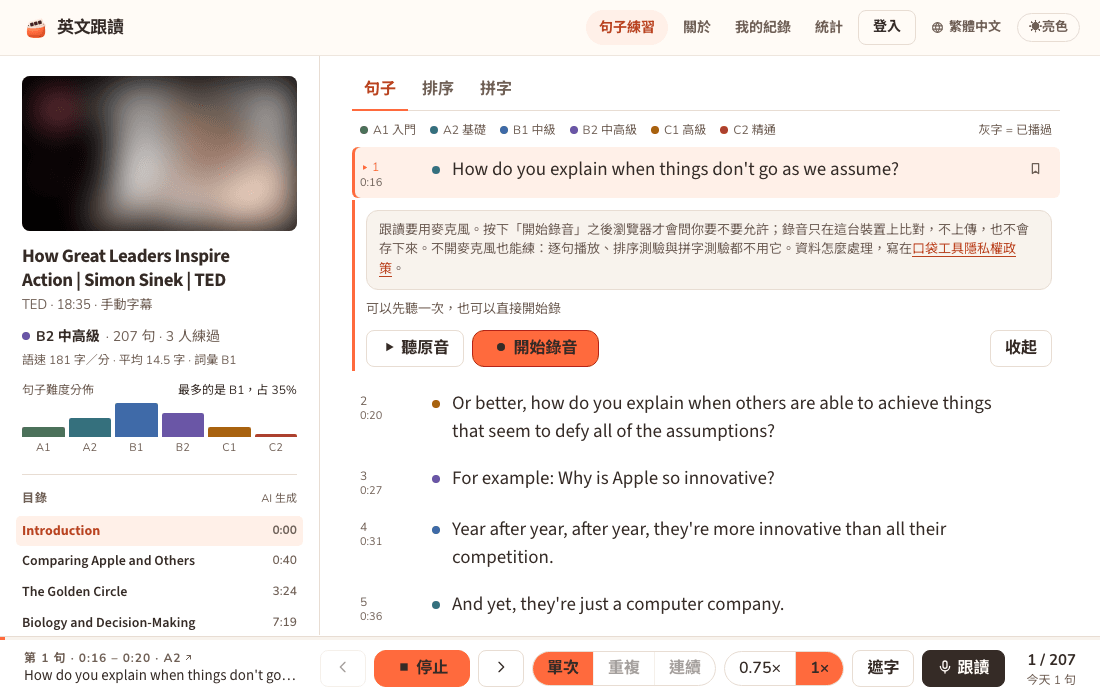
Reading the feedback
After a recording, the page aligns the words your browser's speech recognition heard with the original sentence. Matches are green, near misses yellow, words heard as something else red, missed words struck through and extra words grey. The raw recognition output is shown underneath, along with how many seconds you recorded and how many times you paused.
I deliberately give no pronunciation score. All a browser hands a web page is a string of text, with no phoneme data, so it cannot tell whether your th is right or which syllable you stressed. Any score built on that would be invented. The feedback answers a narrower question: did the machine understand you? A red word may be a word you did not say clearly, or it may be the recogniser getting it wrong, so trust your own ears on the recording. When fewer than half the words match, the page skips the word colouring and asks you to check your microphone and background noise instead.
Choosing a video and a level
- Pick something you mostly understand. Material where you know seven or eight words in ten but cannot keep up with the speed is ideal. A video you cannot follow at all only brings frustration.
- Check the difficulty chart first. The left column shows how the sentences split by level, so you can start with the A2 and B1 lines and work up. The home page also filters the videos already in the library by level.
- Prefer one clear voice. Talks, interviews and lessons are easier to shadow than panel shows with people talking over each other or loud background music.
- Uploaded subtitles are more precise than automatic captions. With automatic captions, a sentence can start a fraction of a second early or late and seem to swallow its first word. Replaying the previous sentence usually bridges the gap, and quizzes have a 前後多 1.5 秒 option that adds 1.5 seconds either side.
No video in mind: the sentence drill
If you would rather not look for a video, open the sentence drill ↗. It draws ten random sentences of 10 to 20 words from a prepared bank and tests them three ways: speaking (listen, then say it), word order (rebuild a shuffled sentence) and cloze (type the missing words). You can choose all levels, A1 only, A1 to A2 or B1 to B2. C1 to C2 has no questions yet.
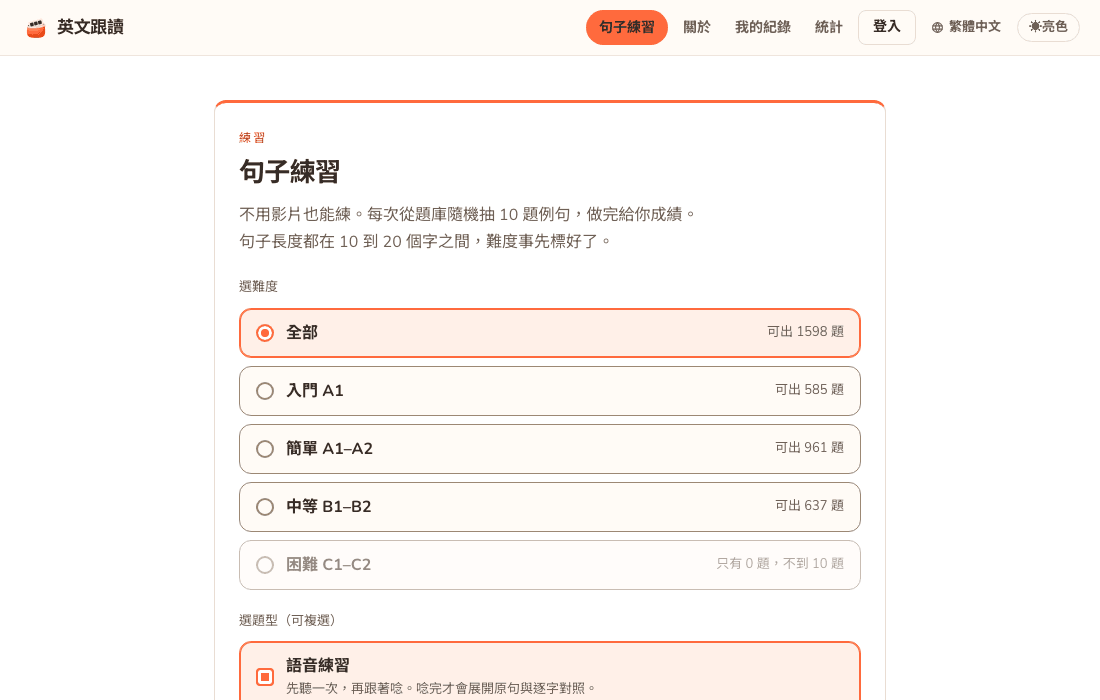
To be clear about where the sentences come from: they are written by AI, checked by code for length and vocabulary, then reviewed for grammar by a second AI pass before going live. The Chinese translation shown after each answer is machine translated too. Some lines may still sound less than natural, so treat the drill as a warm-up and a way to add volume, and go back to real videos for the rhythm of real speech. The drill needs an English text-to-speech voice in your browser to read the questions and will not start without one. The microphone is only used by the speaking questions.
The microphone and your data
- Recordings stay in your browser. Only one is kept at a time and it is discarded when you move to the next sentence. It is never uploaded or saved to browser storage, and a reload clears it.
- Speech recognition is the exception. Turning your speech into text uses the browser's built-in recognition (the Web Speech API). Chrome sends that audio to its own recognition service, which does not pass through this site.
- Everything works without an account. Records are kept on your device by default. Sign in with Google and your played sentences, bookmarks, notes, word list and drill results sync to the server so you can continue on another device.
- The privacy policy lists every synced item and explains how to revoke microphone access.
What it cannot do
- Videos without English subtitles cannot be split into sentences, and videos whose creator disabled embedding will not play in the player.
- There is no pronunciation score and no judgement of your accent, for the reasons above.
- The "what the machine heard" feedback only works in Chrome based browsers, such as desktop Chrome or Edge. Other browsers can still play sentences, record, compare with the original and run the quizzes.
- The interface is Chinese only for now, in Traditional and Simplified script.
- YouTube occasionally blocks a subtitle request for a while, and trying again later usually works. To keep costs in check, each visitor can add up to 20 new videos a day; videos already in the library are unlimited.
- On phones you can play sentences, take quizzes and use the word list, but recording behaves differently across mobile browsers. Desktop Chrome is the most reliable.
Questions people ask
Does it cost anything, or do I need an account? No on both counts. Every feature is free and works without signing in. Signing in only lets your records follow you between devices.
How much should I practise at a time? My own advice is little and often: five to ten sentences, two or three recordings each, beats shadowing an entire video in one go. The player bar shows how many sentences you practised today and your streak, which helps as a reminder.
How is shadowing different from reading aloud? Reading aloud follows the text; shadowing follows the sound. For the version without text, turn on the mask and rely on your ears.
Why does a sentence sometimes seem to start late? Sentence timing comes from the YouTube subtitles, and automatic captions can be off by a fraction of a second. Replay the previous sentence, or turn on the extra 1.5 seconds in a quiz.
Why can't I see the full subtitles on the public video page? Subtitles belong to the video's creator, so the public page shows only the title, a summary and an outline. The subtitles load into your browser when you press start practice.
If what you want to practise is conversation rather than shadowing, pair this with Speak Cards English Practice, scenario handouts built for an AI voice tutor. Or go back to all tools.