
Pixel Smith Image Tools
Watermark ID copies, convert iPhone HEIC photos to JPG, blur, pixelate or add text, and edit photos online, all processed in the browser with no upload by default
 Tap the image to open the tool ↗
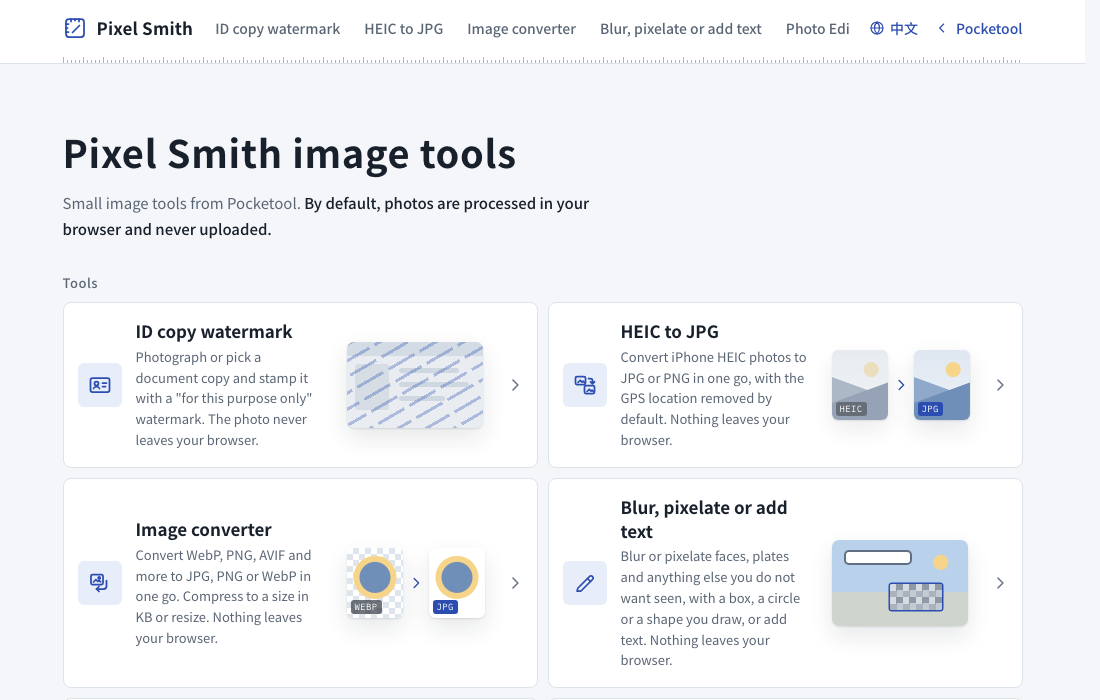
Pixel Smith is the image tool shelf of Pocketool. The ID copy watermark lets you photograph an ID card on your phone and add a line saying who the copy is for and what it is for before you send it. HEIC to JPG turns iPhone HEIC photos into JPGs that open on Windows and on almost any website. The Image converter turns WebP, PNG and other formats into JPG, PNG or WebP, and can compress a file to a size in KB. Blur, pixelate or add text puts a caption on a photo, or covers what you do not want seen, such as number plates, house numbers and faces, with pixelation (mosaic), blur or a solid block. The Photo Editor is an online photo editor for fixing up one photo with layers, masks, a brush, adjustments and blur. The Screen recorder records your screen, a window or a tab with sound, and lets you trim the recording before you download it. All of them process photos and recordings in your browser and upload nothing by default; only the Photo Editor has an optional cloud save, which uploads an editing project when you sign in with Google and save it. This page is an overview of when each one helps, what the process looks like and how your photos are handled. The examples, settings and FAQ live in the guides on the tool pages themselves, and the links below take you straight to each part.
Open Blur, pixelate or add text ↗
ID copy watermark
Renting a flat, applying for a job, opening a bank account, signing up for a mobile plan or buying insurance often means handing over a copy of your ID. This tool puts who the copy is for and what it is for on the copy itself before it leaves your hands.
When it helps
- The copy leaves your hands: you send it to a landlord or agent over a messaging app, upload it through an online form or email it to HR. You cannot see how it is stored, so stating the purpose on the copy makes it easier to spot if it turns up somewhere else.
- Several organisations want the same document: make one copy per recipient, each with its own recipient and purpose, rather than one copy that goes everywhere.
- Only part of the document is needed: fields the errand does not need can be covered with a solid block, although whether you may mask anything, and what, depends on the recipient.
It is not always the right move. Some offices want to see the original, and some do not accept an annotated copy at all. Ask first, as the ask before you hand it over section of the guide explains.
What the tool does
- Crop and straighten: drag the four corners around the card to turn an angled photo into a flat one, or use the whole image as it is.
- Text watermark: templates for renting, job applications, bank accounts, mobile plans and insurance assemble the note once you fill in the recipient and the purpose. There is also a custom option where you type the whole sentence.
- Style: tiled or placed once, opacity, angle, text size, tile spacing, colour and outline, with fonts from a built-in list.
- Image watermark: add a signature or a logo in PNG, JPG or WebP, with the white background removed by default. Text and image watermarks can each be switched on or off.
- Masking and rotation: cover the fields you do not need to share, and rotate the photo in quarter turns.
- Front, back and output: add the back once the front is done, with both sides sharing one set of settings. Each side downloads as its own JPG, sharing sends both at once, and on a computer you can also copy the image.
- A4 printing: when a paper copy is needed, put the watermarked front and back on one A4 sheet and print straight from the browser. ID cards and health insurance cards print at actual size (85.6 × 54 mm), so choose "Actual size" in the print dialog. No PDF file is created, and the photo is still not uploaded.
It works on phones and computers, and on a computer you can drag a photo straight in. It is free and needs no account.
How it compares with other ways of doing it
| Approach | Upside | Watch out for |
|---|---|---|
| Print the copy and write on it | Needs no tool at all | You need a printer, and a note written in one spot disappears if that corner is cropped |
| Type on it in a photo or editing app | Already on your phone | Usually one line of text that is hard to repeat across the card, and whether the saved file keeps the original photo data depends on the app |
| Pixel Smith | Templates build the sentence, the note can tile across the whole card, front and back are done together and fields can be masked; the output is redrawn, so it carries none of the original EXIF data | Fonts are downloaded over the network, and in-app browsers such as LINE's often cannot download files, so open it in your phone's default browser |
How to word the note and set up the watermark
This is covered in the guide on the tool page, and that is the most complete place to read it:
- Watermark text for five common situations: renting, job applications, bank accounts, mobile plans and insurance
- Where to place the watermark: hard to crop off, without hiding the details the recipient has to check
- How to set the watermark up: tiled or single placement, opacity, colour and type size
- Frequently asked questions: where iPhone downloads go, downloads inside LINE, HEIC photos, both sides and signatures
The principle fits in one line: say who it is for, what it is for and when you handed it over. The narrower that is, the less room there is to reuse the copy. A note lowers the chance of misuse but is not a guarantee, and it cannot stop someone determined from editing or rephotographing it.
In the English version the templates produce the note in English. For a copy going to an organisation in Taiwan, the Chinese version of the tool builds the note in Traditional Chinese.
HEIC to JPG
HEIC is the default photo format on iPhone. At the same quality the files are smaller than JPG, but Windows, many websites and upload forms do not support it. This tool converts HEIC photos to JPG or PNG inside your browser, so they open almost anywhere.
When it helps
- iPhone photos will not open on a Windows computer: Windows needs two add-ons from the Microsoft Store, HEIF Image Extensions and HEVC Video Extensions, before it can show .heic photos.
- A form or website will not take HEIC: application, registration and job sites often accept only JPG or PNG, so a HEIC photo will not upload.
- The photo is going to someone you do not know well: a photo taken with location on stores where it was taken, and converting it is a chance to remove the GPS location.
If all you want is for future photos to be JPGs, you do not need to convert anything: choose Most Compatible under Settings › Camera › Formats on your iPhone. Photos you already took stay as they are. The full settings are in make your iPhone save JPG on the tool page.
What the tool does
- Many photos at once: pick as many as you like or drop a whole batch in. There is no limit, and the tool converts them one at a time. Files ending in .heic and .heif both work.
- JPG or PNG: for photos, JPG is the right choice. The default quality of 92 is practically indistinguishable from the original, and you can change it. PNG adds no further quality loss but makes much larger files. Either way, the photo keeps its original size.
- Three choices for photo details: the default, Remove location, keeps the date and phone model and removes the GPS location. You can also remove everything or keep everything. PNG output carries no capture details.
- Orientation and colour: portrait photos are turned upright the way they were shot, and the wide colour range (Display P3) of iPhone photos is converted to sRGB, the standard for screens and websites, so colours do not look washed out.
- Download: download each photo on its own, or, once two or more are converted, all of them as one ZIP.
Only the still part of a Live Photo is converted. The moving part is a separate .MOV video file, and it is skipped if you drop it in. It is free and needs no account.
Which browsers can convert
The tool decodes HEIC with your browser or operating system and does not download a separate decoder, so whether it works depends on your device:
- Mac, iPhone and iPad: Safari 17 or later converts.
- Chrome and Edge: they borrow the graphics card's video decoder, which works on most computers. If conversion fails on Windows, check that graphics acceleration is turned on in the browser settings; Edge may also need HEVC Video Extensions from the Microsoft Store.
- Firefox on Windows: it cannot decode HEIC yet, so use Edge or Chrome instead.
Some computers cannot decode HEIC at all, or only some photos (10-bit photos, for example, are not supported by every graphics card). The page then tells you the device cannot convert HEIC, or cannot decode the encoding a photo uses, and the FAQ on the tool page lists what to try. When you pick a photo from your library in Safari on iPhone, the system usually hands the page a JPG already, so the tool says the photo is already a JPG and you can use the original as it is. Browsers on iPhone and iPad cannot handle very large photos (24 or 48 megapixels, for example), so convert those on a computer.
How it compares with other ways of doing it
| Approach | Upside | Watch out for |
|---|---|---|
| Install the HEIF and HEVC extensions on Windows | The Photos app opens HEIC directly | Only your own computer can show them; uploads and anything you send on are still HEIC |
| Set the iPhone camera to Most Compatible | New photos are saved as JPG | Photos you already took stay as they are |
| An online converter site | Works in any browser | Most upload your photos to their server first, and what happens to the capture details depends on the site |
| Pixel Smith | No upload, many photos at once, GPS location removed by default | Depends on whether your browser and graphics card can decode HEIC; Firefox on Windows does not work |
Guides on the tool page
- Why Windows can't open HEIC: plus two ways to avoid converting
- Keep or remove photo details: what each option keeps, and whether the photo comes out sideways
- JPG or PNG: which format to choose and which quality to pick
- Frequently asked questions: how many photos at once, why it says a photo is already a JPG, what to do when a device cannot convert, Live Photos and ZIP files
Image converter: WebP and PNG to JPG
Pictures saved from the web often arrive as .webp, while job applications, school forms and government portals often accept only JPG, and a PNG screenshot can be too large to attach. The Image converter turns JPG, PNG, WebP, AVIF, GIF (first frame) and BMP files into JPG, PNG or WebP, many at a time, and you download each file or one ZIP.
- Compress to a size limit: when a form says "under 500 KB", enter it and the tool finds the highest quality that fits; if even the lowest quality is too large, it tells you so and suggests resizing.
- Transparent backgrounds in JPG: JPG has no transparency, so transparent areas are filled with white by default, or black or a colour you pick; PNG and WebP keep the transparency.
- Resize: by a longest side limit or a percentage, never larger than the original.
- For iPhone HEIC photos, use HEIC to JPG above. Safari and browsers on iPhone and iPad cannot save WebP, so that option is switched off there. Images are processed in your browser and are not uploaded.
Blur, pixelate or add text
Before a photo goes on social media, into a group chat or onto a second hand listing, there are often two jobs to do: cover what should not be shown, and add a line of explanation. This tool does both, on the same photo if you like.
When it helps
- Hide personal details before you post: number plates, house numbers, faces in the background, tracking numbers and addresses on a parcel, or a name and phone number in a screenshot.
- Add a caption to a photo: point out where an item is scratched, number the steps in a how-to screenshot, or put a date and place on an event photo.
- Both at once: cover what cannot be shown, add your note, and one download saves both into a single image. Text is always drawn on top of covered areas, so it never gets pixelated.
What the tool does
- Text: size, colour, bold and outline are adjustable. The default is white text with a dark outline, which stays legible over light and dark backgrounds alike; turning the outline off switches to a soft shadow. Latin, Chinese and Japanese kana all work.
- Covering: cover an area with a box, a circle or a shape you click out point by point with Draw, which suits irregular areas such as a number plate shot at an angle or a chat bubble. There are three styles, pixelate (mosaic), blur and solid, with adjustable strength for pixelate and blur. Cover as many areas as you need; each has its own settings and can be deleted on its own.
- Editing: drag text and covered areas with a finger or a mouse, resize an area with the round handle at its bottom right corner, drag the points of a drawn shape to reshape it, or nudge with the arrow keys.
- Download: save as PNG or JPG at the size of the original. A photo whose longest edge is over 4096 pixels, such as one from a 48 megapixel phone, is scaled down to 4096 before editing, and the download panel states the original size.
It opens JPG, PNG, WebP and HEIC, although HEIC depends on whether your device can open it; if it cannot, run the photo through HEIC to JPG above first. It works on phones and computers, and on a computer you can drag a photo straight in. It is free and needs no account.
The covered area is really gone
Pixelate, blur and solid are not a translucent shape laid on top. The tool replaces the pixels in that area with newly calculated colours, so the download holds no hidden copy of the original and no layer that an editing app could peel away. The three styles suit different things:
- Solid: paints the whole area black and keeps none of the original pixels. For ID numbers, phone numbers, account numbers and addresses, where not a single character may show, use solid. A number whose font and format are easy to guess, such as a phone or account number, can be pixelated or blurred beyond what the eye can read and still be matched by applying the same effect to candidate numbers one by one.
- Pixelate and blur: they leave averaged colours rather than a blank, and suit faces, people in the background, and number plates or house numbers that only need to be unrecognisable. Strength scales with the longest edge of the whole photo, so in a small crop from a screenshot or a close-up, where the text takes up more of the photo, raise the strength until the preview is unreadable, and zoom in to check before you download.
Because the change is painted in, the download is final. If you may still want to adjust something, keep the tab open and download again when you are happy.
Guides on the tool page
- Keeping text readable on a photo: outline or shadow, and how text size follows the photo
- Pixelate (mosaic), blur or solid: what each of the three suits and how strong to make it
- Is the covered area really gone: the preview and the download run the same code, and the download is final
- Frequently asked questions: non Latin text, covering several areas, whether the download gets smaller, and using it on a phone
Photo Editor (online photo editor)
When you want to fix up one photo quickly on a computer or a phone, without installing an app or signing up, the Photo Editor does it in the browser. It has the everyday tools, layers, masks, a brush, adjustments, blur, text and shapes, and is built to stay smooth rather than to be a full Photoshop.
When it helps
- Soften the background: use Local blur to brush over only the background and keep the subject sharp.
- Fix brightness and colour: brighten a photo taken against the light, or warm up or cool down an indoor shot, for the whole picture or for one layer.
- Draw, add text or point with arrows: brush strokes, text, boxes, circles, lines and arrows are each a layer, so you can move them, recolour them or delete them later.
- Crop to the shape you need: free, 1:1, 4:3, 16:9 or the original ratio, plus rotating, flipping and straightening.
What the tool does
- Layers and masks: the photo, what you paint with the brush, each piece of text and each shape are all layers that you can reorder, fade, hide, duplicate or delete. On a mask, the brush shows the layer and the eraser hides it; the layer's own pixels are never changed, so you can always paint it back. Each layer can also take a blend mode such as Multiply or Screen, and photo and brush layers can get an outside outline.
- Adjustments: brightness, contrast, saturation, temperature, sharpening, vignette and noise, plus levels and curves.
- Undo: up to 50 steps, with Ctrl (⌘ on a Mac) + Z on a computer.
- Download: PNG, JPG or WebP, with a quality setting for JPG and WebP, at the size of the photo you loaded. Some browsers, Safari for example, cannot write WebP, and then that option is turned off.
- Phones too: every feature works on a phone, with lower limits. A computer takes photos up to 4096 pixels on the long side and up to 12 layers; a phone or tablet takes 3072 pixels and up to 8 layers. A larger photo is scaled down in proportion before editing starts.
Selection tools and AI background removal are not included, and it cannot open or save PSD files. It opens JPG, PNG and WebP; if a HEIC photo will not open, run it through HEIC to JPG above first. It is free and needs no account.
Blur here is for looks: to hide details, use Blur, pixelate or add text
The Photo Editor's blur is there to make pictures look good, with a softer background and a sense of depth. It is not guaranteed to make anything unreadable, and large text may still be legible. To hide faces, number plates, phone or ID numbers, use Blur, pixelate or add text above instead: it replaces the pixels in the area and also offers solid black. The Photo Editor's download is one flat picture of all the visible layers, and hidden layers are not in the file.
Cloud save: optional, and nothing is uploaded unless you sign in
If you want to carry on from another device, use cloud save: press Cloud at the top right of the editor, sign in with Google and pick a slot with Save here. Layers, masks and your last few undo steps are saved with the project. Each account holds up to 3 projects of up to 50 MB each, readable only by you when signed in; they are deleted after 180 days without use, and you can delete one project or your whole account at any time. Without signing in the feature is simply not used, and nothing is sent. What is stored, where, and how to delete it is set out in this site's Privacy Policy.
Guides on the tool page
- What this browser photo editor can do: adjustments, blur, brush, text and shapes, crop, undo and download
- Using layers and masks: three steps to blur the background and keep the subject sharp
- On a phone: size and layer limits: why phones get lower limits than computers
- Frequently asked questions: using it like Photoshop in the browser, saving and carrying on later, formats and quality, and HEIC photos
Screen recorder
For a how-to video, a meeting walkthrough or a quick bug report, the Screen recorder records in Chrome, Edge, Firefox or Safari on a computer with nothing to install. Record the whole screen, a window or a tab, or only your camera or microphone.
- Audio: add your microphone. System audio depends on the system and browser: Chrome and Edge on Windows record it when you share the entire screen; on a Mac you need a recent Chrome or Edge and macOS, otherwise only tab audio; Firefox and Safari cannot record computer audio. The page tells you what your setup can record before you start.
- Webcam bubble: put your camera in any of the four corners, and move it while recording.
- When you stop: preview, trim the start and end without re-encoding, and download MP4 (WebM in Firefox), or save only the audio. There is a 3 second countdown, and keyboard shortcuts start, pause and stop.
- Phone browsers cannot record the screen, so the page shows the built-in screen recording on iPhone and Android instead; Xbox Game Bar and the Snipping Tool on Windows and Shift-Command-5 on a Mac are covered on the same page. What you record stays in that tab and is not uploaded; it becomes your file only when you download it.
How your photos are handled
- In the ID watermark, HEIC to JPG, Blur, pixelate or add text and the Photo Editor, reading the photo, processing it and producing the output all happen in the browser, and the image only lives in that tab's memory until you close or reload it. The one exception is the Photo Editor's cloud save: an editing project is uploaded to our cloud storage only when you sign in with Google and press Save here, never automatically.
- The output of the ID watermark, Blur, pixelate or add text and the Photo Editor is redrawn from scratch, so it carries none of the original capture time, phone model or GPS location, and cloud projects in the Photo Editor do not store those details or the file name either. In HEIC to JPG you choose how much of the capture details to keep, and the GPS location is removed by default.
- The browser only remembers settings: your watermark style in the ID watermark tool, and your choice of format, quality and photo details in HEIC to JPG. Blur, pixelate or add text and the Photo Editor remember nothing at all. The text you type, the photos and the file names are not stored.
- The watermark fonts, the font used for photo text and the fonts offered in the Photo Editor (apart from the system font) come from Google Fonts, and those requests do not include your text. HEIC is decoded by your browser or operating system, and no other website processes your photos.
You can check this yourself in airplane mode, following the steps in is my photo uploaded and check it yourself on the tool pages; for Blur, pixelate or add text, see is my photo uploaded on its page, and for the Photo Editor, is my photo uploaded on its own page. For fonts, usage statistics and server logs, see the Pixel Smith privacy notice.
Questions people ask
Does it work on a computer? Yes. The ID watermark, HEIC to JPG, Blur, pixelate or add text and the Photo Editor all let you drag photos straight in on a computer. With the ID watermark you can copy the image as well as download it, HEIC to JPG can download several converted photos as one ZIP, in Blur, pixelate or add text you drag text and covered areas with the mouse and nudge them with the arrow keys, and the Photo Editor has keyboard shortcuts for undo and redo.
Is it free? Yes, with no account. Nothing is uploaded unless you choose the Photo Editor's cloud save, which needs a Google sign in.
With the copy ready to send, take a look at the Taiwan ZIP Code Lookup guide, or go back to all tools.